

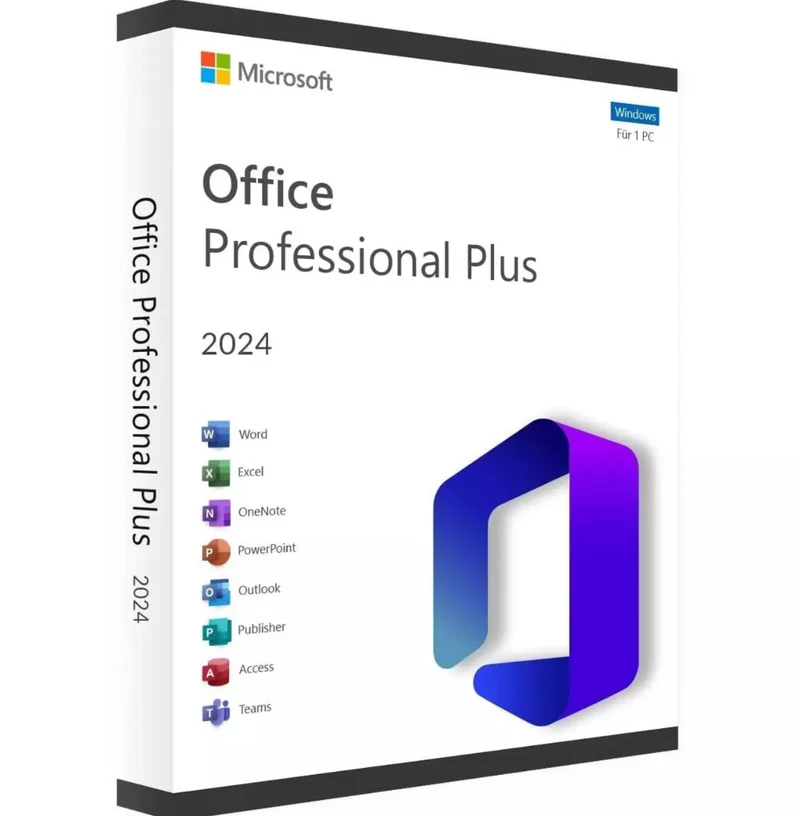
Office 2024 Professional Plus is a modern Microsoft Office solution for Windows users who need familiar desktop productivity applications for documents, spreadsheets, presentations, email, databases, and everyday work. This page explains the Office 2024 Professional Plus edition, its applications, installation process, activation considerations, system requirements, troubleshooting tips, and official Microsoft resources.
Before installing Office, always verify the exact product edition, system requirements, installation instructions, and activation information associated with your purchase.
Table of Contents
- Office 2024 Professional Plus Overview
- Office 2024 Professional Plus Applications
- Office 2024 Professional Plus Features
- Office 2024 Professional Plus Installation
- Office 2024 Professional Plus Activation
- Office 2024 System Requirements
- Before Installing Office 2024
- Office 2024 Troubleshooting
- Official Microsoft Resources
- Other Microsoft Office Products
- Office 2024 Support Lifecycle
- Frequently Asked Questions
- Conclusion
Office 2024 Professional Plus Overview
Office 2024 Professional Plus belongs to Microsoft’s 2024 generation of Office applications. It is designed for Windows environments and provides access to familiar desktop productivity tools for working with documents, spreadsheets, presentations, email, and other business or personal tasks.
The supplied product information identifies this product as Microsoft Office 2024 Professional Plus for Windows. The exact activation and installation process can depend on the product configuration and information supplied with your purchase.
Office 2024 is different from Microsoft 365. Microsoft 365 is a subscription service that receives continuously updated features and includes additional cloud-based services. Office 2024 belongs to Microsoft’s non-subscription Office product family.
For customers comparing different Microsoft Office versions, it is important to check the exact edition before installation. Product names can be similar while their activation methods, supported operating systems, and included applications may differ.
Office 2024 Professional Plus Applications
Office 2024 Professional Plus provides access to several familiar Microsoft productivity applications. The exact applications can depend on the specific Office edition and licensing configuration.
Microsoft Word
Microsoft Word is designed for creating and editing documents. It can be used for letters, reports, assignments, business documents, resumes, and other written content.
Microsoft Excel
Microsoft Excel provides spreadsheet functionality for calculations, tables, data organization, formulas, charts, and analysis.
Microsoft PowerPoint
PowerPoint is Microsoft’s presentation application. It can be used to create presentations, slides, visual explanations, and business presentations.
Microsoft Outlook
Outlook provides email, calendar, contacts, and other productivity features. Availability can depend on the specific Office edition.
Microsoft Access
Microsoft Access is a database application available with supported Office editions. It can be used to create and manage relational databases and database-based applications.
Microsoft OneNote
OneNote provides digital note-taking capabilities and can be useful for organizing notes, information, research, and project material.
Office 2024 Professional Plus Features
Office 2024 Professional Plus provides a familiar desktop Office environment while introducing improvements available in the 2024 generation of Microsoft Office.
Microsoft highlights improvements across applications including Word, Excel, and PowerPoint. These improvements are designed to enhance productivity, accessibility, performance, and the overall Office experience.
Excel 2024 includes new functions and improvements for working with data. Microsoft also highlights improvements involving dynamic arrays, charts, and workbook performance.
PowerPoint 2024 includes presentation-related improvements and features designed to help users create and record presentations.
Word 2024 includes improvements related to document recovery and accessibility.
Microsoft also provides additional information about the changes introduced in Office 2024 through its official documentation.
Office 2024 Professional Plus Installation
Installing Office 2024 Professional Plus should begin with checking the exact Office edition and the installation instructions supplied with your purchase.
Step 1: Check Your Windows System
Before installation, verify that your Windows version meets the requirements for the specific Office edition. Also check available storage, memory, processor requirements, and display requirements.
Step 2: Check Existing Office Installations
If another Office version is already installed, review whether it should remain on the computer. Multiple Office installations can sometimes create configuration or activation conflicts.
Step 3: Download the Installation Files
Use the download source and instructions supplied for your product. Avoid unofficial Office installers, modified installation packages, or unknown activation tools.
Step 4: Install Office
Follow the installation instructions and allow the setup process to complete. Depending on your configuration and internet connection, the installation process may take some time.
Step 5: Open an Office Application
After installation, open Word, Excel, PowerPoint, or another installed Office application. You can normally check the installed Office edition from the Account section of an Office application.
Office 2024 Professional Plus Activation
Office 2024 Professional Plus activation depends on the specific product and activation information supplied with your purchase. Always follow the activation instructions provided for the product you purchased.
If a product key or other activation information is supplied, enter the information exactly as provided. Avoid changing characters or using activation information intended for a different Office edition.
Microsoft states that internet access can be required for Office activation. Make sure your computer has a working internet connection when activation requires online verification.
If activation does not complete successfully, first confirm that the installed Office edition matches the product you purchased. Then review Microsoft’s official troubleshooting resources.
Do not use unauthorized activation utilities or unofficial software claiming to activate Microsoft Office. These tools can create security, installation, or licensing problems.
Office 2024 System Requirements
The exact system requirements for Office 2024 Professional Plus depend on the specific edition. Microsoft publishes separate requirements for Office editions and Office LTSC products.
For Office LTSC Professional Plus 2024, Microsoft’s published requirements include:
- 1.1 GHz or faster processor with two or more cores
- 4 GB RAM
- 4 GB available disk space
- 1280 × 768 minimum display resolution
- A supported Windows operating system
- Supported web browser requirements where applicable
Microsoft’s documentation lists supported Windows environments for Office LTSC 2024, including specific Windows 11, Windows 10 LTSC, and Windows Server versions.
Because requirements can vary between Office editions, always check the current Microsoft documentation for your exact product before installation.
View Microsoft’s official Office system requirements
Before Installing Office 2024
Preparing your computer before installing Office 2024 Professional Plus can help reduce common installation problems.
- Check that your Windows version is supported.
- Verify that enough disk space is available.
- Check your computer’s RAM and processor specifications.
- Make sure your internet connection is working if online installation or activation is required.
- Close unnecessary applications during installation.
- Review existing Office installations.
- Keep your purchase and activation information available.
- Use trusted installation sources.
If Microsoft 365 or another Office edition is already installed, check the installed products before starting a new Office installation. This can help prevent version conflicts.
Office 2024 Troubleshooting
Office 2024 Will Not Install
If the installation fails, begin by checking your Windows version and available storage. Make sure your computer meets the requirements for the specific Office edition.
Also check whether an existing Office installation could be interfering with the installation process.
Office 2024 Will Not Activate
If activation fails, confirm that the installed edition matches your purchased product. Check the activation information carefully and make sure the computer has the required internet connection.
Office Shows an Activation Message
Open an Office application and select File > Account. This area can provide information about the installed Office product and activation status.
Office Installation Keeps Failing
Restart the computer and try the installation again after checking the system requirements. If the issue continues, consult Microsoft’s official Office support documentation for additional troubleshooting steps.
Official Microsoft Office 2024 Resources
For accurate and current information about Office 2024, system requirements, support, and product changes, use Microsoft’s official documentation.
-
Microsoft Office 2024 and Office LTSC 2024 FAQ
-
Microsoft Office System Requirements
-
What’s New in Office 2024
These official Microsoft resources can help you verify requirements, understand the Office 2024 product family, and review Microsoft’s latest documentation before installation.
Other Microsoft Office Products
If you are comparing different Office versions, Nexlic also offers other Microsoft Office products that you can explore:
-
Microsoft Office Digital Licenses
-
Microsoft Office 2016 Professional Plus
-
Microsoft Office 2019 Professional Plus
-
Microsoft Office 365 Pro
Office 2024 Support Lifecycle
Microsoft provides lifecycle information for Office 2024 and Office LTSC 2024. For Office LTSC 2024, Microsoft currently lists October 9, 2029 as the end-of-support date.
The support lifecycle is important when comparing Office versions because Microsoft does not provide the same support period for every Office release.
Microsoft also explains that Office LTSC is different from Microsoft 365. Office LTSC is designed around a fixed release and does not receive new features continuously in the same way as Microsoft 365.
For the most accurate lifecycle information, always consult Microsoft’s current official documentation.
Frequently Asked Questions
What is Office 2024 Professional Plus?
Office 2024 Professional Plus is a Microsoft Office edition for Windows. Microsoft documentation for Office LTSC Professional Plus 2024 identifies applications including Word, Excel, PowerPoint, Outlook, OneNote, and Access.
Is Office 2024 the same as Microsoft 365?
No. Office 2024 and Microsoft 365 are separate Microsoft products. Microsoft 365 is a subscription service with continuously updated applications and online services, while Office 2024 belongs to Microsoft’s Office 2024 product family.
Does Office 2024 work on Windows?
Yes. Microsoft provides Office 2024 products for Windows. However, exact operating-system support depends on the specific edition, so check the applicable Microsoft system requirements before installation.
Which applications are available in Office 2024 Professional Plus?
Microsoft’s documentation for Office LTSC Professional Plus 2024 identifies applications such as Word, Excel, PowerPoint, Outlook, OneNote, and Access. The exact applications available can depend on the specific edition and configuration.
Does Office 2024 require internet access?
Internet access can be required for Office installation, activation, and other product-related functions. Requirements depend on the specific Office edition and installation configuration.
What is the Office LTSC 2024 support end date?
Microsoft currently lists October 9, 2029 as the end-of-support date for Office LTSC 2024.
How can I check which Office version is installed?
Open Word, Excel, or another Office application and go to File > Account. Microsoft uses the Account section to provide information about the installed Office product.
Conclusion
Office 2024 Professional Plus provides a modern desktop Office environment for Windows users who need familiar productivity applications such as Word, Excel, PowerPoint, Outlook, OneNote, and Access, subject to the exact edition and configuration.
Before installing the product, check your Windows version, available storage, system requirements, installation instructions, and activation information. Following official Microsoft documentation can help you prepare your computer correctly and troubleshoot common installation or activation issues.
If you are comparing Office versions, take time to review the exact product edition and requirements before purchasing or installing. You can also explore the other Microsoft Office products available through Nexlic’s Microsoft Office collection.
Ready to get started with Office 2024 Professional Plus? Review the product details, installation information, system requirements, and activation instructions carefully before proceeding.


Reviews
There are no reviews yet.