

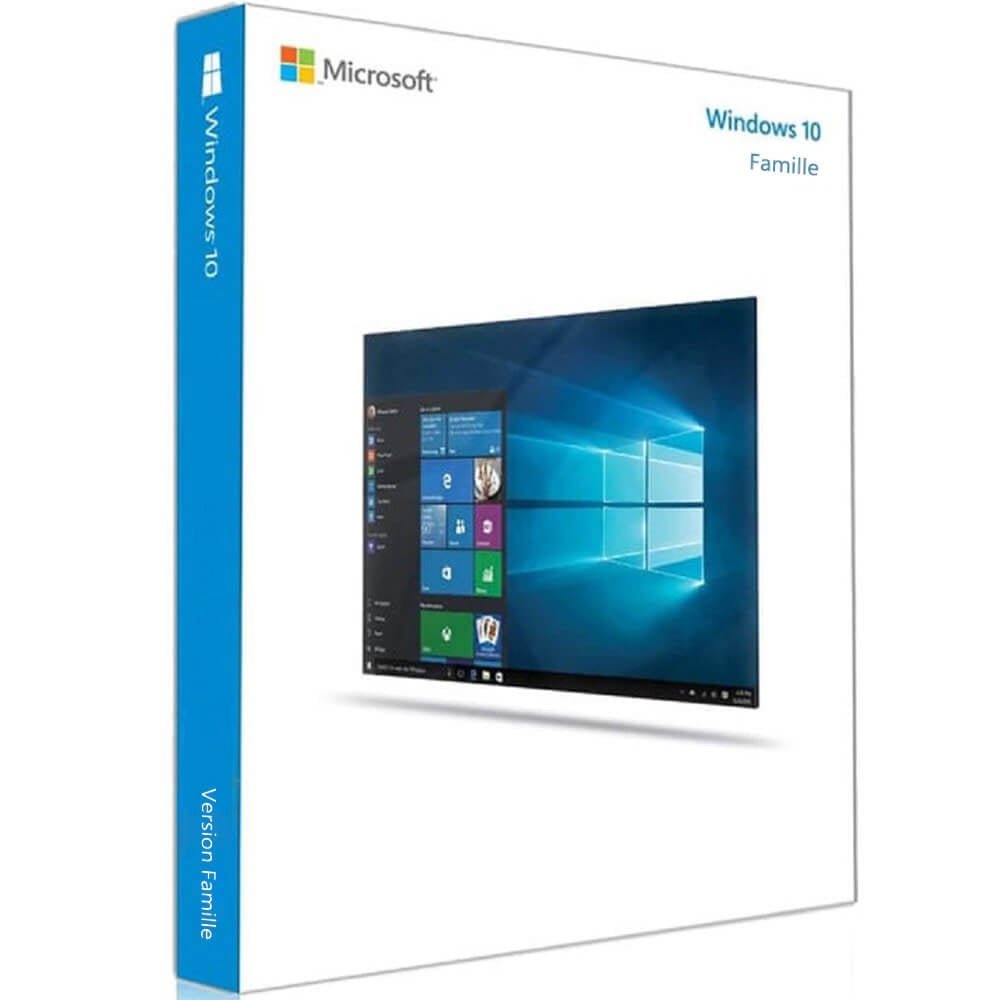
Windows 10 Home Digital License Retail – Phone Activation
Windows 10 Home phone activation is the main focus of this product page for customers looking for a Windows 10 Home activation solution using the phone activation method identified in the product title.
The product is listed by Nexlic as Microsoft Windows 10 Home Digital License Retail – Phone Activation. Before purchasing, customers should verify the Windows edition installed on their computer and review the activation method applicable to their product.
Windows activation is the process Microsoft uses to associate a Windows installation with an applicable license or product key. Microsoft distinguishes between a digital license and a 25-character product key, and the activation method available to a user can depend on how Windows was obtained and the activation scenario.
If you are specifically looking for information about Windows 10 Home phone activation, this guide explains the activation process, how to check your Windows edition, how to review activation status, what Installation ID and Confirmation ID mean, and what to do if you experience an activation error.
Windows 10 Home Phone Activation
The product title identifies phone activation as the activation method. Microsoft provides documentation for supported Windows activation scenarios where users can activate Windows through an offline or phone-based process.
Depending on the Windows installation and activation scenario, the process may display an Installation ID. The applicable activation procedure can then provide a Confirmation ID that is entered back into Windows to complete the activation process.
Microsoft’s official documentation should always be used for the current activation procedure because Windows activation screens and available options can vary according to the Windows version, installation, and activation state.
For official information, visit the Microsoft Windows activation guide.
The purpose of this page is to help you understand the process before and after purchasing the product, while avoiding unsupported assumptions about device limits, transfer rights, warranty conditions, or other licensing terms that are not explicitly stated on the product listing.
Check Your Windows 10 Home Edition Before Activation
One of the most important steps before using any Windows activation method is confirming the Windows edition installed on your computer.
The product is specifically associated with Windows 10 Home. If your computer is running a different Windows edition, such as Windows 10 Pro, the activation requirements may be different.
How to check your Windows edition
You can use the Windows Settings interface and system information to identify the edition currently installed on your computer.
- Open the Start menu.
- Select Settings.
- Open System.
- Select About.
- Review the Windows edition information displayed on the page.
Checking the edition before activation helps ensure that you are working with the appropriate Windows product. Microsoft also explains that when reinstalling Windows, the edition installed should correspond to the applicable license.
If you are unsure about your edition, do not attempt random activation methods or third-party activation tools. Verify the Windows information first and consult Microsoft’s documentation when necessary.
Check Windows 10 Activation Status
Before attempting Windows 10 Home phone activation, check whether Windows is already activated. This can prevent unnecessary activation attempts and can also help identify whether a problem is related to activation.
Windows 10 activation settings
In Windows 10, activation information can be found through the Settings application.
- Open Settings.
- Select Update & Security.
- Open Activation.
The Activation page provides information about the current activation state. Microsoft may display information indicating that Windows is activated, activated with a digital license, or not activated.
If Windows is already activated, record the current status before making major changes to the operating system. If Windows is not activated, review the activation instructions applicable to your product.
You can also use the official Microsoft activation documentation for additional information about digital licenses and product keys.
How Windows 10 Home Phone Activation Works
The exact steps for Windows 10 Home phone activation can vary depending on the Windows installation and the activation options presented by the operating system.
In supported scenarios, Windows can provide an activation workflow that uses an Installation ID and Confirmation ID. The process is designed to allow Windows to communicate the necessary activation information through the applicable activation channel.
General phone activation workflow
- Open Windows 10 Settings.
- Navigate to the Windows activation section.
- Review the current activation status.
- Select the applicable phone or offline activation option if it is available.
- Follow the instructions displayed by Windows.
- Record the Installation ID when Windows provides one.
- Follow the applicable Microsoft activation instructions.
- Enter the Confirmation ID when Windows requests it.
- Complete the activation process.
- Return to the Activation settings and check the final activation status.
The options displayed by Windows can differ depending on the installation and activation situation. Therefore, users should follow the instructions shown on their own computer rather than relying on screenshots from an unrelated Windows installation.
For detailed official information, consult Microsoft’s online and offline Windows activation instructions.
Installation ID and Confirmation ID
Understanding the difference between an Installation ID, Confirmation ID, digital license, and product key can make the activation process easier to follow.
An Installation ID can be generated by Windows during supported phone or offline activation procedures. It represents information associated with the activation request.
A Confirmation ID is associated with the applicable activation process and is entered into Windows when requested.
A product key is different. Microsoft describes a Windows product key as a 25-character code that can be used for activation in applicable situations.
A digital license is another Windows activation method and does not necessarily require entering a product key during activation.
These terms should not be treated as interchangeable. If Windows displays a specific activation screen, follow the instructions provided by Microsoft for that particular screen.
You can learn more about product keys through Microsoft’s official Windows product key documentation.
What to Check Before Purchasing
Before purchasing this product, take a few minutes to verify the information that matters most for your Windows installation.
1. Check your Windows edition
Confirm that the computer uses Windows 10 Home or that you otherwise understand the edition requirements associated with the product.
2. Review the activation method
This product is identified as a phone activation product. Make sure you understand that the listed activation method is different from simply entering a product key through the standard online activation screen.
3. Check your existing activation status
Open Windows Activation settings and check whether the system is already activated.
4. Review the supplied instructions
After purchasing, follow the instructions supplied with the order. If the activation process presents an unexpected error, review Microsoft’s official documentation before trying another method.
5. Avoid unofficial activation tools
Do not use cracks, unauthorized activators, or activation bypass software. These tools are not part of the normal Microsoft activation process and can introduce unnecessary security or software risks.
For additional information about Nexlic’s digital products and activation process, visit the Nexlic FAQ.
Windows 10 Digital License and Product Key Explained
A common source of confusion is the difference between a digital license and a product key.
Microsoft explains that a digital license is an activation method associated with the Windows device, while a product key is a 25-character code. These two methods are not identical.
The product name on this page identifies the product as a digital license and specifically references phone activation. Customers should therefore follow the instructions provided for the product rather than assuming that every digital license uses the same activation procedure.
The Windows activation system can also associate activation information with the device’s hardware configuration. For this reason, activation behavior can vary between installations and hardware configurations.
If you need clarification about the product before ordering, you can contact Nexlic through the Nexlic Contact page.
Windows 10 Home Phone Activation Troubleshooting
If Windows 10 Home phone activation does not complete successfully, start by reviewing the exact message displayed by Windows.
Check the Windows edition
Make sure the installed edition corresponds to the product. An edition mismatch can prevent an activation method from working as expected.
Check the activation screen
Open the Activation settings and review the current status. If Windows provides an error code, record it before attempting additional troubleshooting.
Review Microsoft’s activation guidance
Microsoft maintains an official resource for Windows activation errors. It can help explain common activation problems and the available troubleshooting steps.
Get help with Windows activation errors
Check the activation instructions
Review the instructions supplied with your order and make sure each step has been completed correctly.
Contact support when necessary
If the activation problem continues after following the supplied instructions and Microsoft’s applicable guidance, contact the appropriate support channel for further assistance.
For Nexlic-related questions, use the Nexlic Contact page.
Reinstalling Windows 10 Home
Customers may eventually need to reinstall Windows because of system problems, hardware changes, or other reasons. Before reinstalling Windows, make sure important personal files are backed up.
Microsoft documents situations where an applicable digital license can be used to activate the same Windows edition after reinstallation. The exact activation behavior depends on the license and device circumstances.
When reinstalling Windows, pay close attention to the edition selected during installation. Installing a different edition from the one associated with the applicable license can create activation problems.
After installation, open the Windows Activation settings and verify the activation status.
Do not assume that reinstalling Windows automatically provides every activation right or transfer option. Review the applicable Microsoft documentation and the terms associated with your particular product.
Windows 10 Support Status
Microsoft ended standard support for Windows 10 on October 14, 2025.
This is an important consideration for anyone purchasing or activating Windows 10 today. Microsoft states that standard technical assistance, feature updates, and security updates for Windows 10 ended after this date.
Windows 10 can continue to operate, but customers should understand the current support lifecycle when deciding whether to continue using Windows 10 or move to a newer supported Windows version.
Eligible computers may have additional options under Microsoft’s Extended Security Updates program, subject to Microsoft’s current eligibility requirements and terms.
If you are considering a newer Windows version, you can also explore the Nexlic Windows Digital Licenses category.
Explore Other Windows Products
Nexlic offers digital software products covering Windows and other software categories. If you are comparing Windows editions, review the available products carefully and select the edition and activation method that match your requirements.
You can browse the Windows Digital Licenses category to see other Windows products available through Nexlic.
If you are specifically comparing Windows 10 editions, you can also review the Windows 10 Pro Digital License product page.
Customers considering a newer operating system can review the Microsoft Windows 11 Professional Digital License product page.
Always check the individual product page for the specific product information, activation method, and conditions applicable to that product.
Frequently Asked Questions About Windows 10 Home Phone Activation
What is Windows 10 Home phone activation?
Windows 10 Home phone activation refers to an applicable Windows activation workflow that uses a phone or offline activation process rather than relying solely on standard online activation. Microsoft documents supported activation procedures involving Installation IDs and Confirmation IDs.
How do I check whether Windows 10 Home is activated?
Open Windows 10 Settings, select Update & Security, and then open Activation. The page displays the current Windows activation status.
What is an Installation ID?
An Installation ID is information generated during supported Windows phone or offline activation procedures. It is used as part of the activation process described by Microsoft.
What is a Confirmation ID?
A Confirmation ID is information used to complete a supported Windows phone or offline activation procedure. When applicable, Windows requests the Confirmation ID during the activation workflow.
Is a digital license the same as a product key?
No. Microsoft treats a digital license and a product key as different activation methods. A product key is a 25-character code, while a digital license is a separate method of activating Windows.
What if the phone activation option is not displayed?
The activation options available in Windows can vary depending on the installation and activation scenario. If the expected option is missing, review Microsoft’s current activation documentation and the instructions supplied with your product.
What should I do if Windows shows an activation error?
Record the error message or code, verify your Windows edition, review the activation settings, and consult Microsoft’s official activation troubleshooting documentation.
Is Windows 10 still supported?
Microsoft’s standard support for Windows 10 ended on October 14, 2025. Windows 10 continues to function, but customers should review Microsoft’s current support lifecycle and security-update options.
Official Windows Activation Resources
For the most accurate and current technical information, use official Microsoft documentation when working with Windows activation.
- Microsoft Windows activation guide
- Microsoft online and offline activation instructions
- Microsoft Windows activation error help
- Microsoft Windows product key information
These resources can be useful when checking activation requirements, understanding activation identifiers, troubleshooting errors, or confirming the current Windows activation procedure.
Conclusion
Windows 10 Home phone activation is the central activation method identified by this Nexlic product listing. Before purchasing, confirm that your Windows installation is compatible with the product information, verify your Windows edition, and check your current activation status.
After purchase, follow the instructions supplied with your order and use Microsoft’s official documentation when you need technical information about Installation IDs, Confirmation IDs, activation status, or Windows activation errors.
Because Microsoft’s Windows 10 support lifecycle has changed, customers should also consider the current support status of Windows 10 when deciding how they plan to use the operating system.
For additional Windows products, visit the Nexlic Windows Digital Licenses category. For questions about Nexlic products or orders, visit the Nexlic Contact page.
By checking your Windows edition, understanding the activation method, following the applicable instructions, and relying on official Microsoft resources for technical guidance, you can approach the Windows 10 activation process with clear and accurate information.


Reviews
There are no reviews yet.