

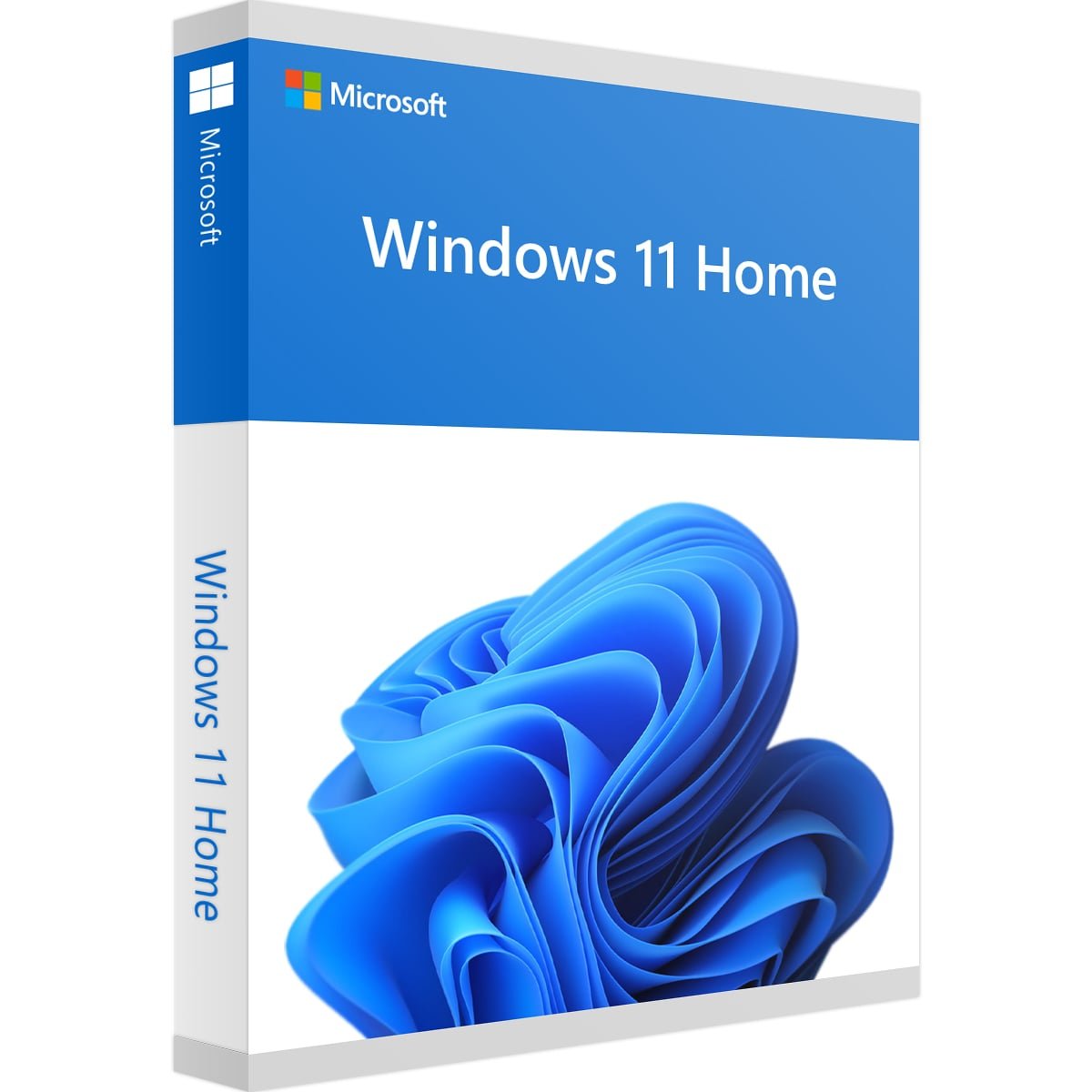
Windows 11 Home Phone Activation
Windows 11 Home Phone Activation provides a practical way to activate Windows 11 Home using the phone activation method associated with this product. This guide explains the activation process, compatibility requirements, preparation steps, and Microsoft activation guidance so you can complete the process with clear information.
Before starting the activation process, it is important to verify your Windows edition, check your device compatibility, and review the current Windows activation status. Microsoft provides official documentation covering Windows activation, digital licenses, product keys, and Windows 11 system requirements.
If you are looking for other Windows products, you can also explore the Windows Products available on Nexlic, including the Windows 11 Enterprise Digital License and Microsoft Windows 10 Enterprise Digital License.
Windows 11 Home Phone Activation Overview
This product is associated with Windows 11 Home and is identified by the product listing as a retail phone activation option. The activation process should always follow the instructions supplied with the product and the activation information displayed by Windows.
Microsoft explains that Windows can be activated using a digital license or a 25-character product key, depending on how Windows was obtained. These activation methods are handled through Microsoft’s Windows activation system.
Because Windows editions and activation methods can differ, always confirm that the edition installed on your computer corresponds with the Windows edition you intend to activate.
What is Windows phone activation?
Phone activation refers to an activation process that can involve Microsoft’s telephone-based activation system. The exact process presented to a user can depend on the Windows installation, activation status, and circumstances of the activation.
If Windows provides a phone activation option, follow the instructions displayed by Windows and any instructions supplied with your purchase.
For general activation information, visit the official Microsoft Windows Activation documentation.
Windows 11 Home Activation
After installing Windows 11 Home, you can check its activation status directly through Windows Settings.
To check the current activation status:
- Open Settings.
- Select System.
- Select Activation.
- Review the activation status displayed by Windows.
The Activation page can show whether Windows is activated and can provide additional information about the activation method associated with the installation.
Microsoft’s official activation documentation explains the difference between activation using a digital license and activation using a product key. You can review the latest information directly through the Microsoft Windows activation guide.
Windows 11 Home Phone Activation Process
The product listing identifies this offering as retail phone activation. Because the exact activation screens can vary depending on the Windows installation, customers should use the activation instructions provided for their purchase together with the instructions displayed by Windows.
Before beginning, make sure you have access to the Windows installation that needs activation and that you can open the Activation section in Windows Settings.
If Windows displays a specific activation error, note the error message or error code. Microsoft’s troubleshooting resources can then be used to identify the appropriate next step.
Check your Windows edition first
Activation is connected to the Windows edition installed on the computer. Before attempting Windows 11 Home Phone Activation, verify that your computer is running Windows 11 Home.
You can review Windows edition information through Settings > System > About. Check the Windows specifications shown on the device before continuing.
Windows 11 Home Compatibility
Compatibility should be checked before installing or upgrading to Windows 11. Microsoft publishes minimum hardware requirements that a compatible computer must meet.
Microsoft’s current requirements include a compatible 64-bit processor running at 1 GHz or faster with at least two cores, at least 4 GB of RAM, and at least 64 GB of storage.
Windows 11 also requires UEFI firmware with Secure Boot capability and TPM version 2.0. Compatible graphics must support DirectX 12 or later with a WDDM 2.0 driver.
Microsoft also states that Windows 11 Home requires internet connectivity and a Microsoft account during initial device setup.
For the complete and current requirements, review the official Windows 11 System Requirements published by Microsoft.
Check compatibility before activation
If you are unsure whether your computer is compatible with Windows 11, Microsoft provides the PC Health Check application. This tool can help determine whether a Windows 10 computer meets the eligibility requirements for Windows 11.
Checking compatibility before installation can help identify hardware requirements that may need attention before proceeding.
Windows 11 Home Digital License and Product Key
Windows activation can involve different types of activation information. Microsoft describes a digital license as an activation method that does not require entering a 25-character product key.
A product key is a 25-character code used for certain Windows activation scenarios. The activation method depends on how Windows was obtained.
It is therefore important not to assume that every Windows installation uses the same activation procedure.
If you need information about locating a Windows product key, consult Microsoft’s official Windows Product Key guide.
Microsoft Account and Windows Activation
A Microsoft account can be associated with a Windows digital license in supported activation situations. Microsoft explains that linking a digital license with a Microsoft account can be useful when troubleshooting activation or dealing with certain hardware changes.
If your Windows installation uses a digital license, check the Activation page to see the activation information associated with your device.
For Windows 11 Home, Microsoft requires an internet connection and a Microsoft account during initial device setup. This requirement is separate from the specific activation method used after Windows has been installed.
How to Prepare for Windows 11 Home Phone Activation
Before starting Windows 11 Home Phone Activation, review the following checklist:
- Confirm that the installed Windows edition is Windows 11 Home.
- Check that the computer meets the current Windows 11 requirements.
- Make sure Windows is installed and operating normally.
- Make sure you have an active internet connection when required.
- Open Settings > System > Activation and check the current status.
- Follow the activation instructions supplied with the product.
- Use Microsoft’s official documentation if Windows displays an activation error.
These basic checks can make it easier to identify whether an activation problem is related to the Windows edition, device compatibility, or the activation process itself.
Windows 11 Activation Troubleshooting
If Windows does not activate as expected, first check the Windows edition and activation status. Make sure the edition corresponds with the activation entitlement or product information being used.
Next, check your internet connection and review any activation error message displayed by Windows.
Microsoft provides official troubleshooting information for Windows activation problems. Use the available troubleshooting options before making unnecessary changes to the Windows installation.
You can find additional information through Microsoft’s Windows Activation Support resources.
Activation error messages
Windows can display different activation messages depending on the issue. The exact error code is useful when researching a problem because different activation errors can require different solutions.
If you encounter an activation error, record the code displayed by Windows and use Microsoft’s current documentation to identify the appropriate troubleshooting steps.
Important Information Before Purchase
Please verify the Windows edition installed on your computer before purchasing or attempting activation.
This product page is specifically associated with Windows 11 Home and the product listing identifies it as a Retail Phone Activation offering. It should not automatically be assumed to activate Windows 11 Pro, Enterprise, Education, or another Windows edition.
Also check your computer against Microsoft’s current Windows 11 requirements before installation or upgrade. Hardware compatibility and Windows edition are important considerations when preparing for activation.
The activation procedure can depend on the Windows installation and the activation information associated with the product. Always follow the instructions provided with your purchase and the instructions displayed by Windows.
Nexlic also offers additional Windows products. Visit the Windows category to explore other available Windows-related products.
Frequently Asked Questions
What is Windows 11 Home Phone Activation?
Windows 11 Home Phone Activation refers to a phone-based activation process for Windows 11 Home. This product listing identifies the product as a retail phone activation offering. Follow the supplied activation instructions and Microsoft’s current activation guidance.
How do I check whether Windows 11 Home is activated?
Open Settings > System > Activation. Windows will display the current activation status for the installed edition.
Is this product for Windows 11 Home?
Yes. The product name and product URL identify this offering specifically with Windows 11 Home and retail phone activation. Always verify the edition installed on your computer before attempting activation.
Does Windows 11 Home require a Microsoft account?
Microsoft states that Windows 11 Home requires internet connectivity and a Microsoft account during initial device setup. This is part of the Windows 11 Home setup requirements.
What are the Windows 11 minimum requirements?
Microsoft currently lists requirements including a compatible processor, 4 GB RAM, 64 GB storage, UEFI firmware with Secure Boot capability, TPM 2.0, compatible DirectX 12 graphics, and a suitable high-definition display.
Can I check Windows 11 compatibility before installation?
Yes. Microsoft provides the PC Health Check application, which can help determine whether a computer meets Windows 11 eligibility requirements.
What should I do if Windows does not activate?
First check the installed Windows edition, internet connection, and activation status. If the issue continues, record the activation error or code and consult Microsoft’s official Windows activation troubleshooting resources.
Explore More Windows Products
If you are comparing Windows products, visit the Nexlic Windows Products category to see other available options.
You can also review the Windows 11 Enterprise Digital License and the Microsoft Windows 10 Enterprise Digital License product pages for additional information.
Conclusion
Windows 11 Home Phone Activation is the activation-focused option identified by this product listing for Windows 11 Home retail phone activation.
Before starting the process, confirm your Windows edition, review your computer’s Windows 11 compatibility, check the activation page, and follow the activation instructions supplied with your purchase.
For technical information about Windows activation, product keys, Microsoft accounts, compatibility, and system requirements, use Microsoft’s official documentation as the authoritative reference.
By checking these details before activation, you can better understand your Windows installation and follow the appropriate activation procedure for your Windows 11 Home setup.


Reviews
There are no reviews yet.