


Table of Contents
- Microsoft Office 2024 Professional Plus Overview
- Office 2024 Professional Plus Applications
- Microsoft Office 2024 Professional Plus Highlights
- Microsoft Office 2024 Professional Plus Activation
- Office 2024 Installation Guide
- Office 2024 System Requirements
- Before Installing Office 2024
- Office 2024 Activation Troubleshooting
- Official Microsoft Resources
- Explore More Microsoft Office Products
- Office 2024 Support Lifecycle
- Frequently Asked Questions
- Conclusion
Microsoft Office 2024 Professional Plus Overview
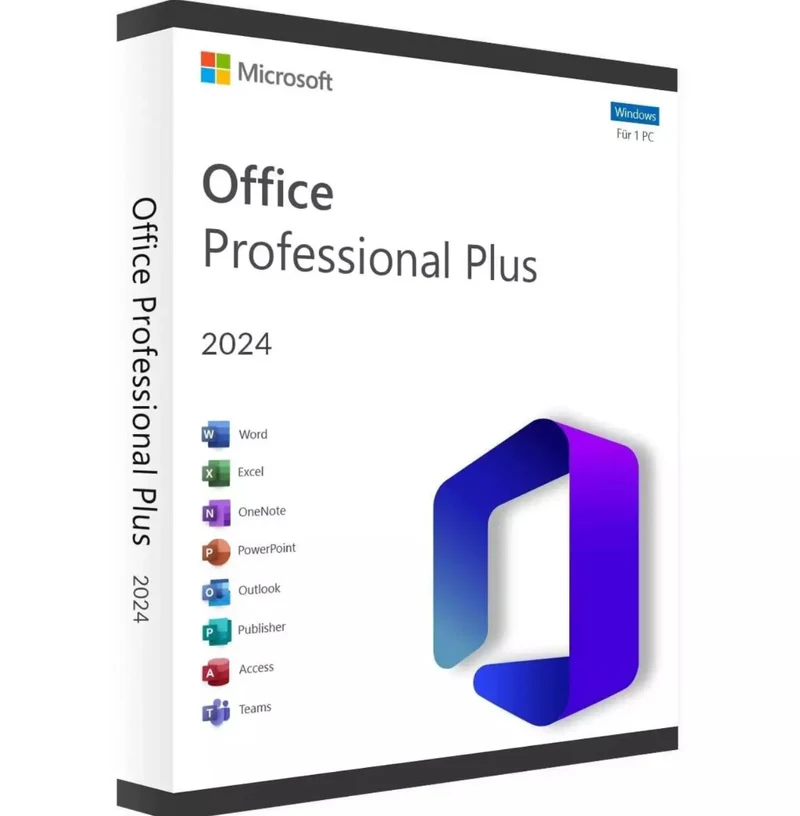
Microsoft Office 2024 Professional Plus is an Office 2024 desktop software product designed for Windows users who need a modern Microsoft Office environment for documents, spreadsheets, presentations, email and other everyday productivity tasks.
The supplied product information identifies this offering as Microsoft Office 2024 Professional Plus and describes it with phone activation and a download link. It also identifies the product as Office 2024 Professional Plus LTSC. Because activation and licensing conditions can depend on the exact Office edition, customers should always review the information supplied with their order before installation.
Office 2024 is part of Microsoft’s latest generation of perpetual Office products. Unlike Microsoft 365, which is delivered as a subscription service, Office 2024 is part of Microsoft’s non-subscription Office product family. Microsoft also provides a separate Office LTSC 2024 edition for organizations that require a fixed-release Office environment.
Understanding the exact edition is important before installing the software. Microsoft publishes different technical documentation for consumer Office 2024 and Office LTSC 2024, including different system requirements and lifecycle information.
Whether you are preparing documents, analyzing information in spreadsheets, creating presentations or managing email, the Office applications provide a familiar productivity environment. The exact applications included depend on the edition associated with the product.
Office 2024 Professional Plus Applications
The supplied product information lists several Microsoft Office applications. These applications are designed for different productivity tasks and can work together as part of the Office environment.
Microsoft Word 2024
Microsoft Word is designed for creating and editing documents. It can be used for letters, reports, proposals, assignments, business documents and other text-based projects.
Word provides tools for formatting text, organizing documents, inserting tables and working with a variety of document elements. It is one of the most commonly used applications in the Microsoft Office family.
Microsoft Excel 2024
Excel is Microsoft’s spreadsheet application. It can be used to organize information, perform calculations, analyze data and create charts.
Excel is useful for budgets, business calculations, lists, financial analysis, project information and many other spreadsheet-based tasks.
Microsoft PowerPoint 2024
PowerPoint is designed for creating presentations. Users can create slides containing text, images, charts, tables and other presentation elements.
PowerPoint can be used for business presentations, educational material, meetings, demonstrations and other situations where information needs to be presented visually.
Microsoft Outlook 2024
Outlook provides tools for email and calendar management. Depending on the applicable configuration, users can organize messages, appointments, contacts and other personal information.
Outlook can therefore be useful for users who want email and scheduling tools within their desktop Office environment.
Microsoft Access 2024
Access is Microsoft’s database application. It provides tools for creating and managing databases and working with structured information.
The availability of specific applications can depend on the Office edition and installation package, so customers should confirm the exact application list associated with their purchase.
Microsoft Office 2024 Professional Plus Highlights
Microsoft Office 2024 Professional Plus brings together several productivity applications in a desktop Office environment. Instead of using separate software applications for documents, spreadsheets and presentations, users can work with a collection of Microsoft Office applications.
The supplied product information describes this product with a download link and phone activation. This means customers should keep the supplied product information and activation instructions available during the installation process.
Another important consideration is the distinction between Office 2024 and Microsoft 365. Office 2024 belongs to Microsoft’s non-subscription Office product family, while Microsoft 365 is based on a subscription model and can include additional cloud-connected services and ongoing feature updates.
For customers specifically looking for Office 2024, checking the edition before purchase is important because different Office products can have different applications, requirements, activation processes and support policies.
Microsoft Office 2024 Professional Plus Activation
Microsoft Office 2024 Professional Plus must be activated according to the applicable activation process for the edition being installed. The supplied product page describes this particular offering with phone activation.
Activation is an important step in the Office installation process. Depending on the Office edition, Microsoft may use different activation technologies and procedures.
Prepare before activation
Before starting the activation process, make sure you have the activation information supplied with your order. Carefully review the instructions and verify that you are installing the Office edition associated with your purchase.
It is also important to make sure that the computer has a supported version of Windows and that the Office installation has completed correctly.
If an activation wizard or another Microsoft activation prompt appears, follow the instructions displayed on the screen. Do not use unofficial activation tools or modified installation files.
Phone activation
The supplied product information identifies this product with phone activation. If the activation process asks you to complete a phone-based procedure, follow the instructions supplied for the product and the instructions displayed by Microsoft.
Activation procedures can change over time and may differ between Office editions. For that reason, the instructions associated with your specific product should take priority.
Office 2024 Installation Guide
Installing Microsoft Office 2024 Professional Plus should begin with confirming the exact Office edition and checking the applicable system requirements.
Step 1: Check your Windows version
Before installing Office, determine which Windows version is installed on your computer. This can normally be checked through Windows system settings.
Microsoft publishes specific system requirements for Office products, and requirements can differ depending on whether you are installing a consumer Office 2024 product or Office LTSC 2024.
Step 2: Review your product information
Keep your order information, download information and activation instructions available. This will make it easier to follow the correct installation process.
Step 3: Obtain the installation files
Use the download resource supplied with your purchase or the applicable official Microsoft installation process.
Always download software from an appropriate and trusted source. Avoid modified installers, unofficial activation programs or unknown executable files.
Step 4: Install Office
Run the appropriate installer and follow the instructions shown on screen. Installation time can vary depending on your computer and internet connection.
After installation has completed, open Word, Excel or another installed Office application to continue the setup and activation process.
Step 5: Activate Office
Complete the applicable activation process associated with your purchase. If the product requires phone activation, follow the supplied phone activation instructions.
Office 2024 System Requirements
System requirements are an important consideration when purchasing and installing Office 2024.
Microsoft publishes different system requirements for different Office editions. For Office LTSC Professional Plus 2024, Microsoft’s documentation lists supported Windows operating systems and hardware requirements.
Microsoft’s documentation for Office LTSC Professional Plus 2024 lists supported Windows 11 versions, supported Windows 10 LTSC versions and supported Windows Server editions. It also specifies hardware requirements including a 1.1 GHz or faster, two-core processor, 4 GB RAM and 4 GB of available disk space for the Windows edition.
Because Microsoft can update its documentation, customers should consult the official Microsoft requirements before installation rather than relying only on general Office specifications.
Check available storage
Make sure your computer has enough available storage for the Office installation and other Windows requirements.
Check your operating system
Verify that your version of Windows is supported by the exact Office edition you intend to install.
Check existing Office installations
If another Office edition is already installed, review the applicable installation instructions. Multiple Office installations can sometimes create conflicts or activation problems.
Before Installing Office 2024
Before installing Microsoft Office 2024 Professional Plus, take a few minutes to prepare your computer.
- Check the Windows version.
- Review Microsoft’s current system requirements.
- Check whether another Office version is installed.
- Keep your product information available.
- Keep your activation instructions available.
- Make sure you have a reliable internet connection when required.
- Close unnecessary applications during installation.
- Use trusted software sources.
Preparing the computer before installation can help reduce common setup problems.
Office 2024 Activation Troubleshooting
Office does not activate
If Microsoft Office 2024 Professional Plus does not activate, first confirm that the correct Office edition has been installed.
Compare the installed edition with the product information associated with your purchase. Installing a different Office edition can result in an activation mismatch.
Check the activation information
Review the activation instructions supplied with your order. If you are required to enter a product key or provide other activation information, check the information carefully before trying again.
Check your internet connection
Some Office activation and installation processes require internet access. Make sure your computer can connect to the internet and that network restrictions are not interfering with the setup process.
Check Windows compatibility
If installation or activation fails, verify that your Windows version meets the requirements for the exact Office edition.
Check existing Office installations
An older Office installation can sometimes interfere with a new installation. If you encounter unexpected errors, review Microsoft’s installation guidance and determine whether an older Office installation should be removed.
Use official Microsoft support
For technical problems, Microsoft’s official support documentation should be your first reference. Avoid unofficial activation utilities because they can create additional security or installation problems.
Official Microsoft Resources
Microsoft provides official documentation covering Office 2024, Office LTSC 2024, system requirements and lifecycle information.
For general Office 2024 information, visit the
Microsoft Office 2024 and Office LTSC 2024 FAQ.
For Office LTSC Professional Plus 2024 system requirements, visit
Microsoft Office system requirements.
You can also review Microsoft’s
Office system requirements for individuals and families
when comparing different Office editions.
Explore More Microsoft Office Products
If you are comparing different Microsoft Office versions, visit the
Microsoft Office Digital Licenses
category on Nexlic.
You can also explore
Microsoft Office 2016 Professional Plus
if you are comparing earlier Office versions.
Another option to compare is
Microsoft Office 2019 Professional Plus.
For users considering a subscription-based Office solution, you can also review
Microsoft Office 365 Pro
and compare the available product information.
Office 2024 Support Lifecycle
Microsoft Office 2024 products have specific support lifecycle information that customers should consider before purchasing.
Microsoft states that Office LTSC 2024 follows the Fixed Lifecycle Policy and has a five-year support period. Microsoft lists October 9, 2029 as the end-of-support date for Office LTSC 2024.
Consumer Office 2024 products follow Microsoft’s Modern Lifecycle Policy. Therefore, it is important to distinguish between Office 2024 and Office LTSC 2024 when researching support information.
This distinction is particularly relevant when evaluating an Office product for business, professional or long-term use.
Frequently Asked Questions
What is Microsoft Office 2024 Professional Plus?
Microsoft Office 2024 Professional Plus is an Office 2024 product identified on the supplied product page as Professional Plus LTSC. The supplied page describes the product with phone activation and a download link.
How is Office 2024 Professional Plus activated?
The supplied product information describes phone activation. Follow the activation instructions associated with your purchase and use Microsoft’s official documentation for general technical guidance.
What applications are included?
The supplied product information lists Word, Excel, PowerPoint, Outlook and Access. The exact application set should always be confirmed against the product information supplied with your purchase.
Is Office 2024 compatible with Windows?
Microsoft documents Windows support for Office 2024 products, but compatibility depends on the specific Office edition. Office LTSC Professional Plus 2024 has its own documented system requirements.
Do I need internet access?
Internet access can be required for downloading software and completing certain activation procedures. Follow the installation and activation instructions associated with your specific Office edition.
What should I do if Office does not activate?
First check that you installed the correct Office edition and that your Windows version meets the applicable requirements. Then review your activation information and follow the supplied activation instructions. Microsoft’s official support documentation can also help with technical troubleshooting.
How long is Office LTSC 2024 supported?
Microsoft states that Office LTSC 2024 has a five-year Fixed Lifecycle Policy and lists October 9, 2029 as the end-of-support date.
Conclusion
Microsoft Office 2024 Professional Plus is presented on the supplied product page as an Office 2024 Professional Plus LTSC product with phone activation and a download link. It provides a desktop Office environment with applications such as Word, Excel, PowerPoint, Outlook and Access according to the supplied product information.
Before installation, carefully check the exact edition, Windows compatibility, installation instructions and activation process associated with your purchase. These details are important because Microsoft maintains different documentation and requirements for consumer Office 2024 and Office LTSC 2024.
For technical information, Microsoft remains the authoritative source for current system requirements, installation guidance and Office lifecycle information.
If you are comparing Office products, visit the Microsoft Office Digital Licenses category on Nexlic to explore the available options.


Reviews
There are no reviews yet.